How to install the Beta App on your iPhone
Follow along with the step-by-step illustrated instructions below. It only takes a few minutes.
Step-by-Step Instructions
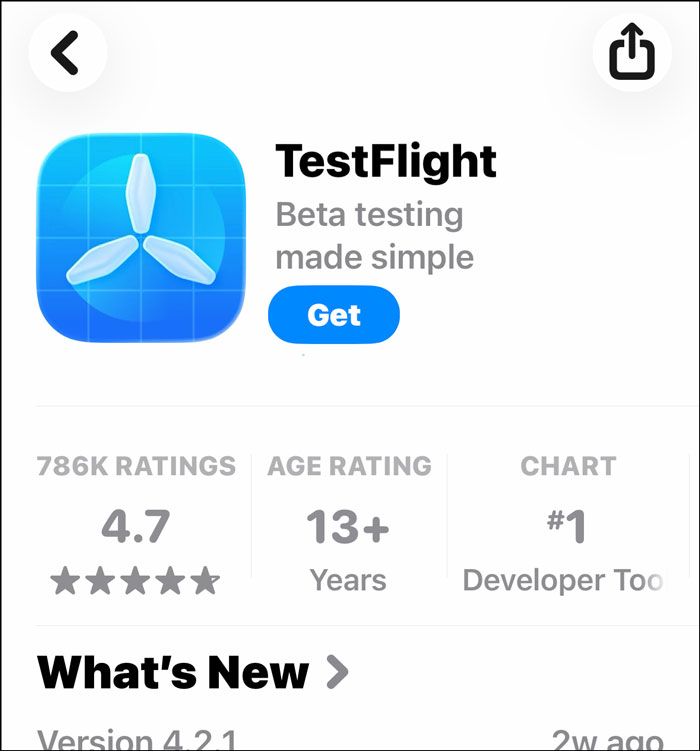
Get the TestFlight App
If you don’t have it, you’ll need to install the free TestFlight App on your iPhone from the App Store first. On your iPhone, tap this link to go to the App Store for TestFlight.
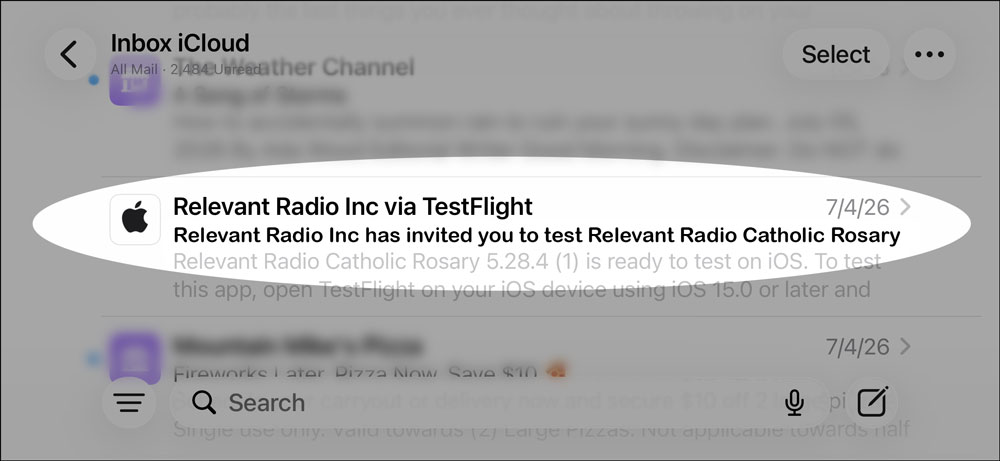
Open your invite email
Apple sent you an invite email. Search for a message from “Relevant Radio Inc via TestFlight” with the subject line “Relevant Radio Inc has invited you to test Relevant Radio Catholic Rosary.” If you don’t see it, check your spam or junk folder. Open the email on your iPhone. If you've already joined our beta group in the past, you may not receive a new TestFlight invitation email from Apple. Simply open TestFlight and follow the remaining steps below, and Relevant Radio should appear in your TestFlight app.
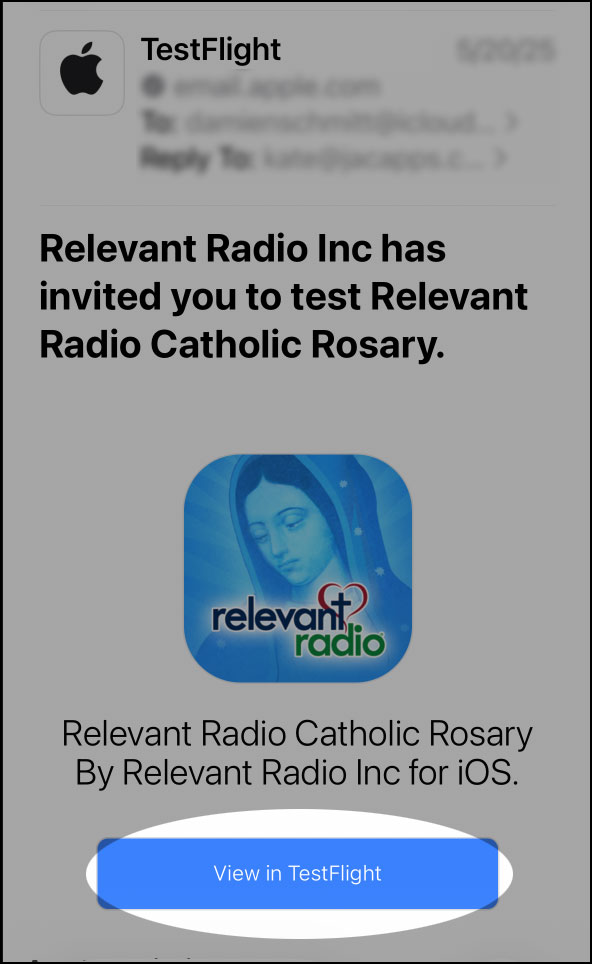
Tap “View in TestFlight”
Open the invite email and tap the “View in TestFlight” button.
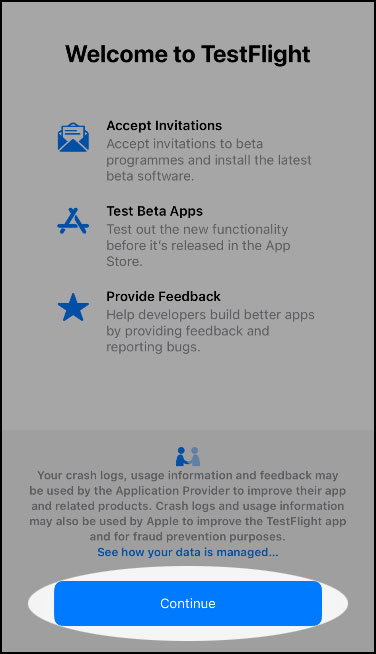
Tap “Continue”
Tap the “Continue” button at the bottom of the screen.
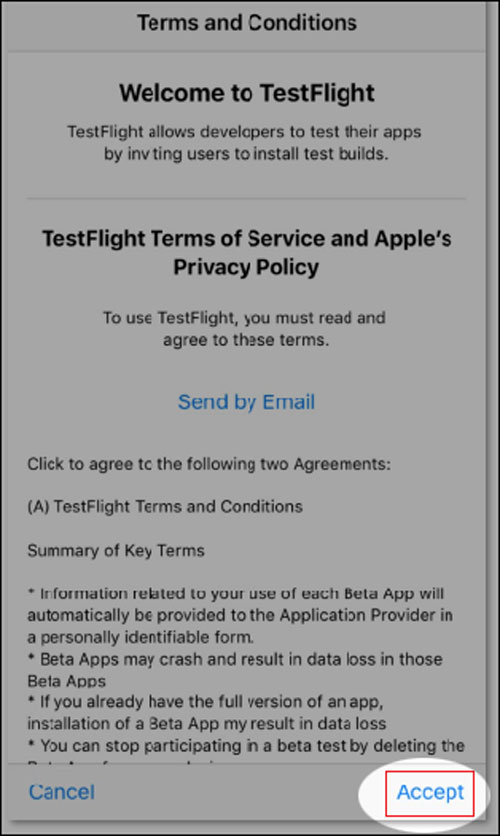
Accept the terms
Tap the “Agree” button at the bottom of the Terms and Conditions.
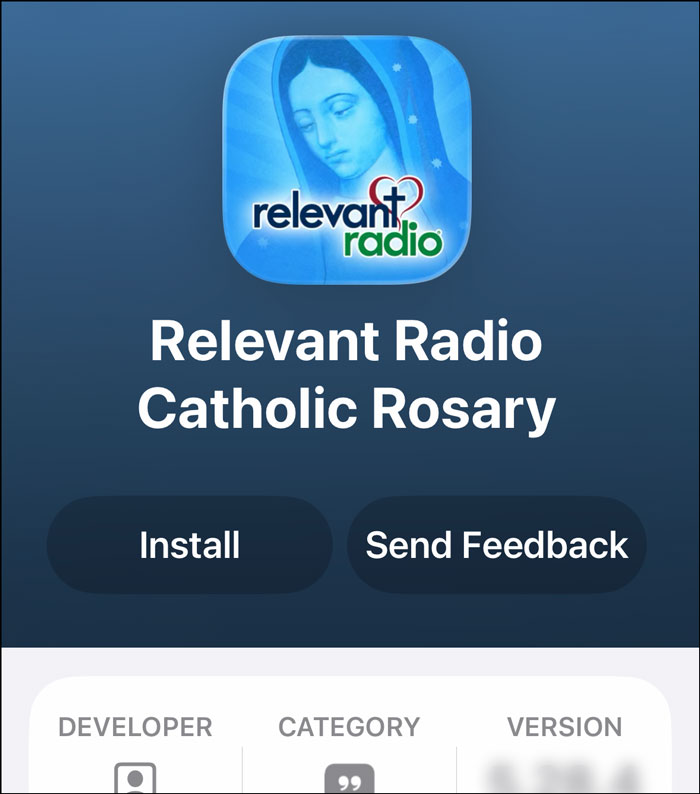
Install the Beta App
If a beta build is available, tap the “Install” button.
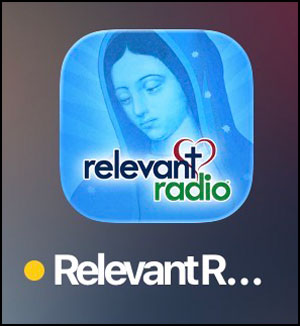
Confirm it’s installed
The Beta App replaces your regular Relevant Radio App icon. If the Beta App is installed, you’ll see a small orange dot next to the app’s name.
New beta builds can take a little while to appear
After you accept the invite, it can sometimes take a little while for a new build to show up in TestFlight. If you don’t see “Install” or “Update” right away, check back shortly — no need to accept the invite again.
Frequently Asked Questions
Getting Started
What is the Relevant Radio Beta Program and why was I invited?+
The Beta Program gives a small group of trusted listeners early access to a new version of the Relevant Radio App before it’s released to everyone. You were invited because you’re an active listener whose feedback we genuinely value.
How is the Beta App different from the regular app?+
The Beta App includes new features and changes that are still being tested. Some things may look or work differently, and you may encounter occasional bugs — that’s exactly why we need your feedback.
Why can’t I see the latest beta update?+
New builds can take a little while to show up in TestFlight after we release them. Open TestFlight, find Relevant Radio, and tap Update when it appears — if you don’t see it yet, check back later. No need to accept the invite again.
How long does the beta testing period last?+
Each beta cycle typically runs 2 weeks. We’ll let you know when the period is ending and guide you through returning to the regular app.
Can I invite others to join the Beta Testing Group?+
Not at this time. The beta is limited to a selected group to keep feedback focused and manageable. We may open it up more broadly in future cycles.
Installing the App
How do I install the Beta App on my iPhone?+
You’ll receive an email invitation from Apple TestFlight. Open it on your iPhone, tap “View in TestFlight,” install the TestFlight app if you don’t have it, then tap “Install” next to Relevant Radio. The Beta App will appear on your home screen — the full steps are illustrated above.
What iOS version do I need?+
The beta requires iOS 15 or later. If your device is running an older version, please let us know and we’ll do our best to accommodate you.
The Beta App won’t install — what do I do?+
First, make sure you’ve accepted the invitation email, have TestFlight installed, and have a stable internet connection. If you’re still stuck, email us and we’ll help right away.
Who do I contact if I have a technical problem?+
Email our team at [email protected]. Please include your device type, iOS version, and a brief description of the issue. We aim to respond within one business day.
Using & Testing
What specifically should I be testing or looking for?+
Use the app as you normally would — listen to your favorite stations, browse content, and explore any new features you notice. Pay attention to anything that feels broken, confusing, slow, or missing.
What counts as a bug vs. a feature request?+
A bug is something that’s broken or behaving unexpectedly (e.g. a button that doesn’t work, audio that cuts out). A feature request is something you’d like the app to do that it doesn’t currently do. Both are equally welcome!
How do I report a crash or something that looks broken?+
Use the feedback form linked in your welcome email. Describe what you were doing when it happened, what you expected, and what actually occurred. Screenshots are a big help if you can grab one.
How often should I use the App during the beta?+
There’s no strict requirement, but we’d love for you to use it at least a few times per week. The more you use it, the more useful your feedback will be.
Will my account, settings, and listening history carry over?+
Yes. Log in with your existing Relevant Radio credentials and your account details will be intact. Your listening history and preferences are stored in your account, not on your device.
Giving Feedback
Where do I submit feedback?+
Use the feedback form linked in your welcome email and at the top of our Beta Testers Google Group. It takes about 3–5 minutes and can be submitted as many times as you like.
Will Relevant Radio actually read and use my feedback?+
Absolutely. Every submission is reviewed by our team. We use your feedback to prioritize fixes and improvements, and we’ll show you what changed as a result in our next beta update email.
Can I give feedback anonymously?+
The feedback form is tied to your Beta Tester email so we can follow up if needed, but you don’t need to include your name in your responses. If you’d prefer to share something anonymously, you can post in the Google Group discussion.
Leaving the Beta
How do I get back to the regular Relevant Radio App?+
Open TestFlight, find Relevant Radio, tap “Stop Testing,” delete the Beta App, then reinstall from the App Store.
Will I lose anything when I leave the Beta Testing Program?+
No. Your account, settings, and listening history are all stored in your Relevant Radio account and will be fully intact when you return to the regular app.
How do I leave the testing pool permanently?+
Simply reply to any beta email with “Remove me from the testing pool” or click the opt-out link at the bottom of your beta emails. We’ll remove you promptly.
Will I be invited to future Beta Testing Groups?+
Yes, unless you opt out. We’ll send a new invitation before each beta cycle. You can choose to participate or sit that one out — no commitment required.
We’re happy to help.
Email us with your phone model, iOS version, and a short description of where you got stuck. We’ll get you into the beta.
[email protected]